
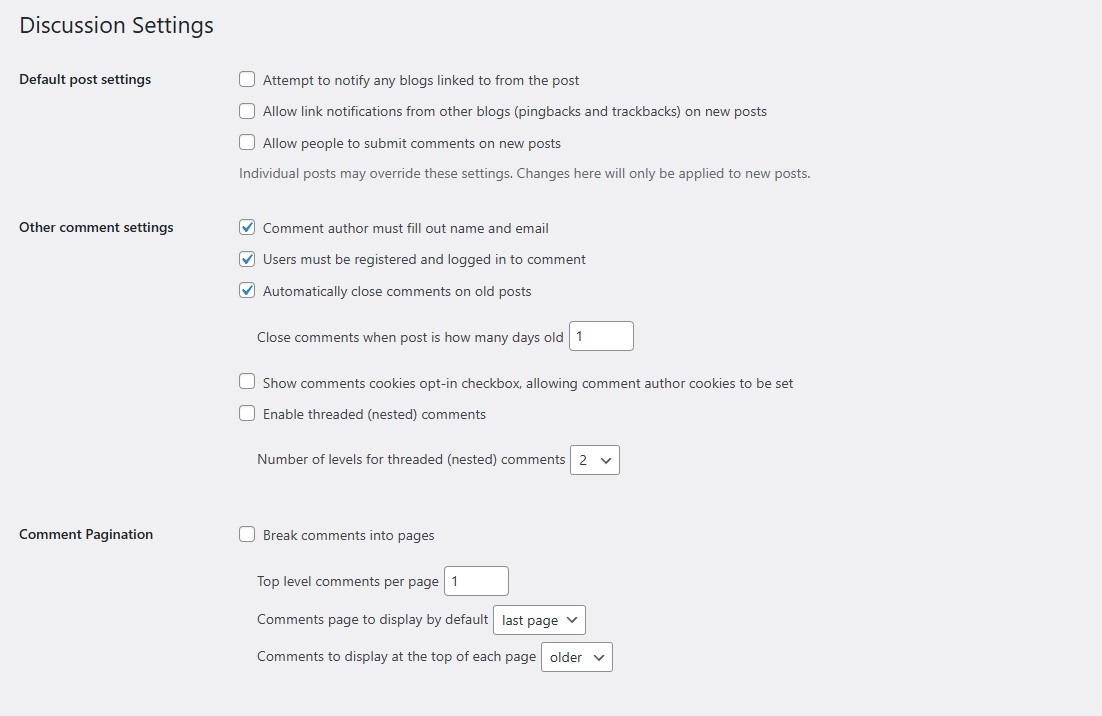
If you want to completely disable comments on your WordPress site without installing any plugin, you can do it entirely from the built-in Discussion Settings. Here’s exactly how to configure each option.
Step 1: Go to Settings → Discussion
From your WordPress admin dashboard, navigate to Settings → Discussion. This is where all comment-related behavior is controlled.
Step 2: Uncheck All Default Post Settings
Under the Default post settings section, make sure all three boxes are unchecked:
Attempt to notify any blogs linked to from the post
Allow link notifications from other blogs (pingbacks and trackbacks) on new posts
Allow people to submit comments on new posts
Unchecking the third option is the most important one — it stops comments from being enabled on any new post you publish going forward.
Note: These settings only apply to new posts. Existing posts will keep whatever setting they already have.
Step 3: Configure Other Comment Settings
Under Other comment settings, here is how the options should be set to lock things down:
Comment author must fill out name and email — Keep this checked. It adds friction and reduces spam if comments somehow still appear.
Users must be registered and logged in to comment — Check this. It effectively blocks anonymous commenting.
Automatically close comments on old posts — Check this, and set the number of days to 1. This will auto-close comments on posts after just one day, acting as a near-complete block.
Show comments cookies opt-in checkbox — Leave unchecked.
Enable threaded (nested) comments — Leave unchecked.
Step 4: Leave Comment Pagination Unchecked
Under Comment Pagination, leave the Break comments into pages option unchecked. Since you’re disabling comments entirely, this setting has no impact, but there’s no need to configure it.
Step 5: Disable All Email Notifications
Under Email me whenever, uncheck all three options:
Anyone posts a comment
A comment is held for moderation
Anyone posts a note
This way you won’t receive any comment-related email notifications.
Step 6: Set Comment Approval Requirements
Under Before a comment appears, both options are checked in the screenshot:
Comment must be manually approved — Keep this checked. Even if a comment somehow gets submitted, it won’t appear publicly until you manually approve it.
Comment author must have a previously approved comment — Keep this checked as an additional layer.
These two settings together mean no comment will ever appear on your site automatically.
Step 7: Configure Comment Moderation
Under Comment Moderation, the setting is configured to hold a comment in the queue if it contains 1 or more links. Leave this as is. You can also leave the moderation keyword list empty — since no comments will be approved anyway, it doesn’t matter.
Step 8: Leave Disallowed Comment Keys Empty
The Disallowed Comment Keys textarea can be left empty. WordPress will automatically trash any comment matching these keywords, but since manual approval is already required, this is just an optional extra layer.
Step 9: Save Changes
Click the Save Changes button at the bottom of the page. WordPress will confirm with a green “Settings saved.” notice at the top.
Summary
By combining these settings — disabling comments on new posts, requiring login to comment, auto-closing after 1 day, and requiring manual approval — you effectively stop all comments on your WordPress site without touching a single plugin or line of code. The Discussion Settings page alone gives you full control.